Convert a screen recording to a GIF — without uploading it
Your recording never leaves your device. Trim the clip, set the frame size, and download a GIF you can drop straight into a README, a changelog, a pull request or a support ticket.
The conversion runs in your browser. Your recording stays on your machine.
No sign-up, no email, no export fee.
Adjust a sample-based estimate before you export.
Convert a screen recording to a GIF
LOCAL CONVERSIONNothing is uploaded. Your file stays on this device.
Your GIF is ready
Why your recording should stay with you
A screen recording can include more than the interaction you meant to show: a customer name in a sidebar, an API key in a terminal, an internal URL, or a feature that has not launched. An online upload gives another service a copy of that interface. For a five-second GIF, that is often unnecessary.
This converter reads the file on your device and creates the GIF in your browser. The video, extracted images and output stay local. There is no video-upload endpoint in this tool and no server conversion fallback. You download the conversion engine, rather than sending your recording away.
Basic categorical diagnostics help us find failures: browser family, container, codec and outcome. They contain no recording bytes, frames, file names, internal URLs or full browser identifier. The GIF tool does not use session replay. If you want to check the local conversion yourself, let the engine finish loading, disconnect, and convert a file in this tab.
Three steps, about thirty seconds to set up
Conversion time depends on your recording and device. Short clips finish fastest.
Pick the recording.
Drag in an MP4, MOV, WebM or M4V up to 200 MB. Your browser opens it locally; nothing is uploaded while it loads. Choose a supported recording, then select up to 60 seconds to convert.
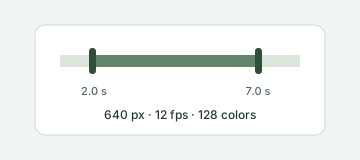
Set the clip and the size.
Choose the start and end of the moment worth showing, then pick a width (640 px is the sweet spot) and a frame rate (10–12 fps). The estimated file size updates as you change them.
Generate and download.
The frames are encoded in your browser. When it finishes, download the GIF and drop it wherever it is going: a README, a changelog, a pull request or a support ticket.
Why your GIF is huge — and how to cut it down
GIF compresses image data, but it does not have the efficient motion compression of modern video. A useful way to think about the work is frames × pixels × color information. That is not an exact file-size formula: palettes, repeated content and compression also affect the download.
Length is the biggest lever. Thirty seconds at 15 fps means 450 frames. Ten seconds at 10 fps means 100 — 4.5 times fewer frames before you change anything else. For a menu opening or a checkout step, aim for five seconds. Keep the context in the surrounding document.
Width works in two dimensions. With the same aspect ratio, dropping from 800 px to 640 px leaves 64% of the pixels; 480 px leaves 36%. A 600–640 px GIF is usually enough inside a document. The converter offers 480, 640 and 800 px and avoids enlarging smaller originals.
Frame rate comes next. Going from 15 to 10 fps removes a third of the frames. Menus, forms and cursor movements often read well at 10–12 fps. Compared with 30 seconds at 15 fps and 800 px, ten seconds at 10 fps and 640 px involves about seven times less pixel-frame work. Actual byte savings depend on the scene.
Try fewer colors and fewer changed pixels. Start with 128 colors, then try 64 for a flat interface. Dithering can help photographs but adds noisy patterns to UI screens; this converter leaves it off. The unchanged-frame setting enables GIF transparency and offset optimizations so static areas need less repeated image data. It preserves the timing of pauses rather than cutting them out.
Finally, crop unnecessary desktop space in your recorder before importing. Cropping is not an in-page feature in this version. Use the estimate to compare settings, then check the actual output size. Aim under 3 MB for documentation or under 1 MB for chat; each destination can have its own limit.
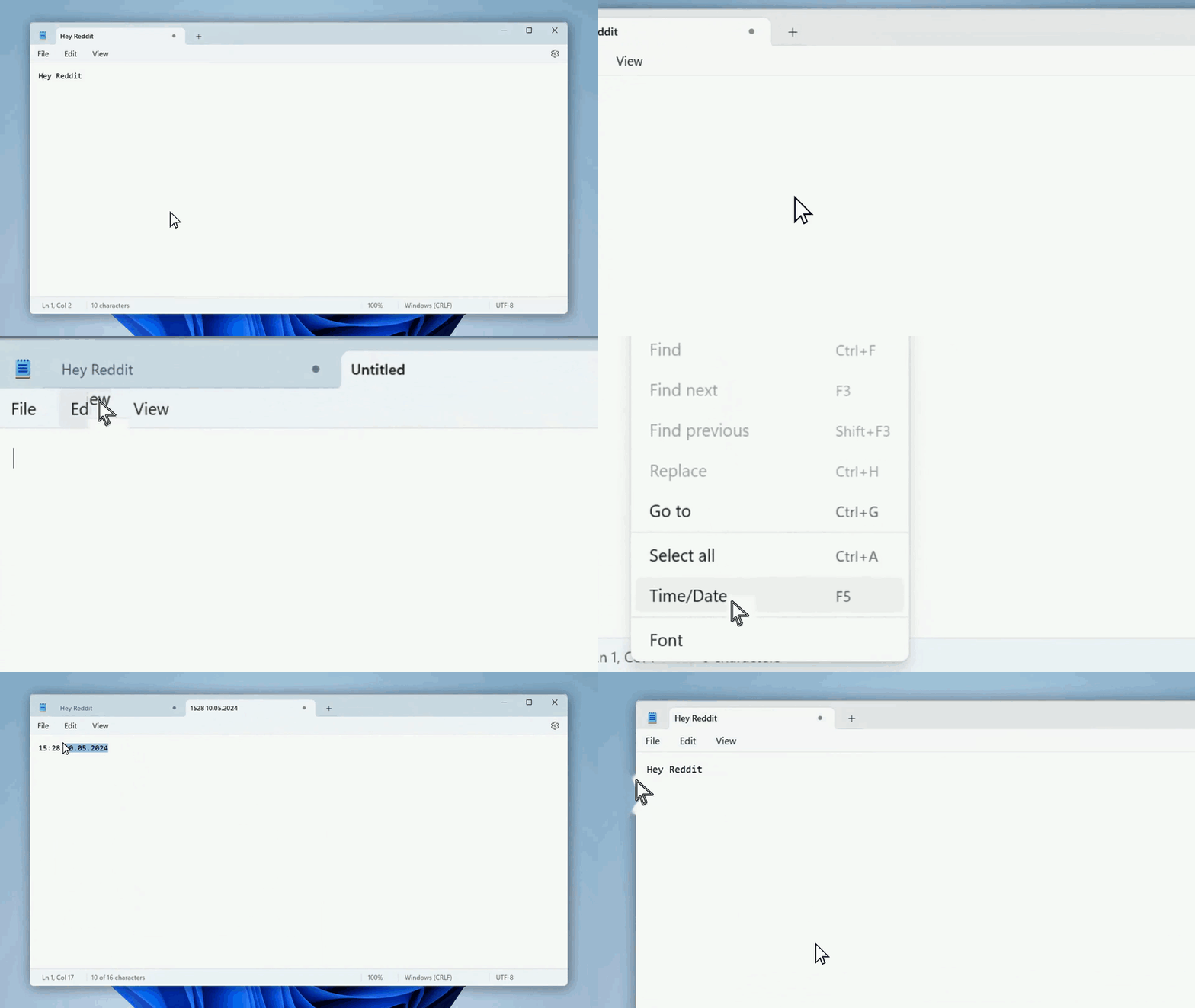
Start with a recording you already have
Windows screen recordings
Use an existing MP4, or record an app with Xbox Game Bar (Win+G; Win+Alt+R starts or stops recording). Snipping Tool also provides screen recording on supported Windows systems. Select a small part of the workflow, save the file, then choose it in the converter. H.264 MP4 is the safest starting point.
Mac screen recordings
Press Cmd+Shift+5 to record all or part of your screen. macOS saves screen recordings as MOV files. MOV is a container, so the video codec inside still matters. Common H.264 recordings are supported; re-export HEVC or ProRes as H.264 for this version. Keep the selected clip short.
iPhone and mobile recordings
Record from Control Center, then transfer the recording to your computer with AirDrop or a cable if you want to avoid cloud transfer. Some iPhone files use HEVC or HDR, which need an H.264 export first. A desktop browser is recommended. On mobile, start with a short clip at 480 px and 10 fps; memory limits vary.
A GIF for a detail. A video for the whole story.
A GIF works well when one interaction says everything: a hover state in a changelog, a short fix in a support ticket, a before-and-after in a pull request, or one feature in a README. It plays inline, needs no audio, and lets a teammate see the point without opening a player. It can also work in Slack or Feishu, subject to the app's file limits.
For more than ten or fifteen seconds, video is usually smaller and clearer. Choose video when sound matters, when the text must stay sharp at full resolution, or when the viewer needs the entire walkthrough. GIF has a limited palette and is a poor substitute for a long product demonstration.
If the recording itself contains wrong turns or hesitation, that is a separate job. Use DemoRefine to clean up the whole recording, then convert the short moment you need. You can keep using the recorder you already have; the GIF tool does not remove pauses or mistakes.
Screen recording to GIF questions
Is this screen recording to GIF converter free?
Yes. No account, email, watermark or export fee. Your device performs the conversion. The page and converter engine still need to download, but your recording is not uploaded. The separate demo-cleanup product has its own plans; see what DemoRefine costs today.
Do I need to upload my recording to convert it?
No. Your browser reads and converts the recording on your device. The video, extracted frames and GIF never go to our server. This matters when the screen contains a customer name, internal URL, API key or unreleased feature. Basic categorical failure diagnostics contain no media or file names. Read how local processing works.
Why is my GIF so large?
GIF lacks modern video's efficient motion compression. Frames × pixels × color information is a useful workload model, though not an exact byte formula. Trim first, then reduce width, frame rate and colors. Thirty seconds at 15 fps is 450 frames; ten seconds at 10 fps is 100. See the GIF size guide.
How long can the GIF be?
You can convert a selection of up to 60 seconds from a file of up to 200 MB. Aim for under ten seconds, and ideally around five, for documentation or chat. A longer source can be opened within the file-size limit, but the selected range must be 60 seconds or less. Longer conversions can be slow on smaller devices.
Can I convert a screen recording to a GIF on Windows?
Yes, in a current browser that passes the converter's local decoding check. Start with an H.264 MP4 from your recorder. Xbox Game Bar opens with Win+G; Win+Alt+R starts or stops a recording. You can also use Snipping Tool screen recording where available. No desktop converter needs to be installed. See recording options.
Can I do this on a Mac?
Yes. Cmd+Shift+5 opens the macOS screen recording controls and saves a MOV file. H.264 MOV recordings are supported by this tool's local engine; other codecs can require a new export. We check the file rather than promising support based on a browser version. Choose a short clip and 640 px to keep the GIF manageable.
Can I convert an iPhone screen recording to a GIF?
Yes, if the recording uses a supported codec. Transfer it to a desktop browser for the most reliable experience. HEVC and HDR recordings need an 8-bit H.264 export before using this first version. Choose 480 or 640 px and keep the clip short: a high-resolution phone recording can otherwise produce an oversized GIF.
Does it work on mobile browsers?
The tool requires WebAssembly and Web Workers, and checks the actual video locally. Mobile browsers have tighter memory limits and can stop lengthy conversions. Try a short, small H.264 clip at 480 px and 10 fps. If loading or decoding fails, you get a next step rather than an automatic server upload. A desktop is recommended.
How is this different from gifcap.dev, ScreenToGif, or ezgif?
gifcap is browser-based and says no upload is needed. ScreenToGif offers an open-source Windows recording and editing app. ezgif offers an upload workflow and also lists a local-processing option, so check the mode you choose. Here, the existing-recording workflow stays local and combines trim, width, frame rate, colors, unchanged-pixel optimization and a sample-based estimate. See the controls.
What if I need more than a GIF?
A GIF fits one short interaction. For sound, longer walkthroughs, full resolution or consistently readable text, use a video. If your source includes hesitation and mistakes, compare GIF and video and choose the appropriate workflow. DemoRefine's recording-cleanup product is separate from this free converter.
More ways to work with a recording
One interaction worth showing?
Choose the recording already on your device. Trim it to the moment that matters, check the estimated size, and make a GIF for your next document or conversation. No account, watermark or upload.
Convert your recording